Install and connect IndieCrab
- Download and import the package. Download the IndieCrab Unity package. In Unity, choose Assets > Import Package > Custom Package and import its contents.
- Create your IndieCrab project. Register with your project name, then open the project in your dashboard and copy its API key.
- Configure the included asset. Select
Assets/IndieCrab/IndieCrabConfiguration.assetin Unity and paste the API key into its API Key field. Error and Exception reporting are enabled by default; Warning reporting is optional. - Add the logger to your scene. Create a GameObject, add the
IndieCrabLoggercomponent, and assignIndieCrabConfiguration.assetto its Configuration field. Put the object in the first scene your game loads. The component persists across later scenes. - Send a test error. For a test in Unity Play mode, enable Allow Logging From Editor in the configuration and call
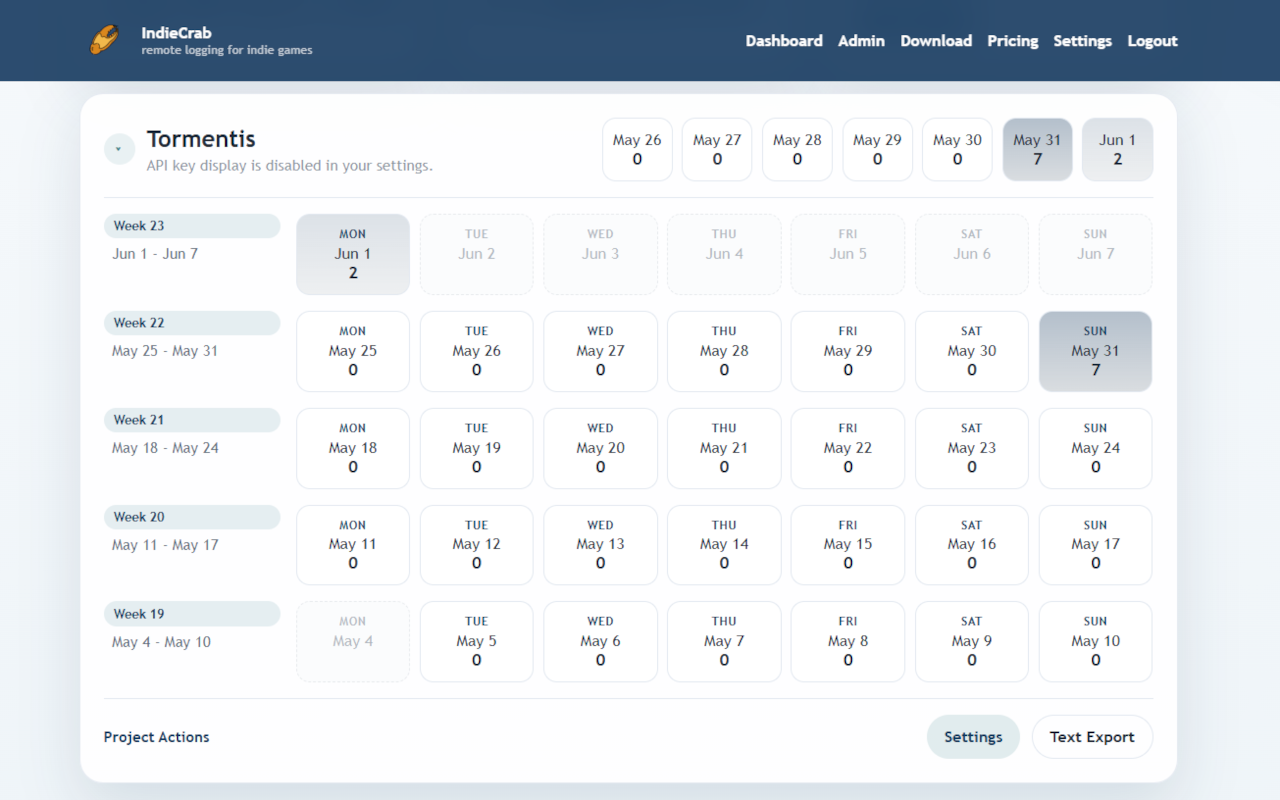
Debug.LogError("IndieCrab setup test");from your game code. Then open the project dashboard and inspect the current day. Turn editor logging off again if you only want logs from player builds.